iOS 5.1.1 Untethered Jailbreak on Linux

The following tutorial will teach all Linux users how to jailbreak their Apple iPhone 3GS, iPhone 4, iPhone 4S, iPad 1, iPad 2, iPad 3, iPod Touch 3G and iPod Touch 4G devices.
As you all know, the Chronic Dev Team finally released today, May 25th, the highly anticipated 2.0 version of Absinthe jailbreak tool for the Linux, Mac OS X and Windows platforms.

With Absinthe 2.0 users will be able to easily untether jailbreak their iPhone, iPod and iPad devices, and today's tutorial I will teach exactly that, step by step, with screenshots.

Supported devices:

· iPhone 3GS;
· iPhone 4;
· iPhone 4S;
· iPod Touch 3G;
· iPod Touch 4G;
· iPad 1;
· iPad 2 Wi-Fi;
· iPad 2 3G;
· iPad 2 2012;
· iPad 3 Wi-Fi
· iPad 3 Wi-Fi + 4G;

Requirements:

· Absinthe 2.0;
· A device from the above list with iOS 5.1.1 firmware.

Step 1 - Download Absinthe 2.0

You can grab a copy of the Absinthe 2.0 jailbreak tool right now from here.

It's a tar.gz archive so just extract it on your downloads folder. Enter the directory and run the x86 or x86_64 (depending on your architecture) executable by double-clicking it.
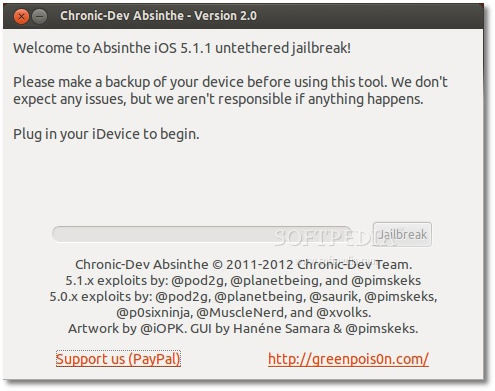

Step 2 - Connect your iPhone, iPod or iPad device

WARNING: Make sure that your iPhone, iPod or iPad device is supported (see the supported devices list at the end of the article) and it was already updated to iOS 5.1.1 via iTunes!

ATTENTION: ALWAYS make a backup of your device(s) before the jailbreak procedure! Make sure the battery is charged over 50% and that the device is connected to the computer via the USB cable! Not meeting these requirements will result in a failure!

Editor's note: This tutorial is NOT for owners of devices that are blocked in other networks than the one used. You know how you are!

Once connected, Absinthe will immediately detect your device...
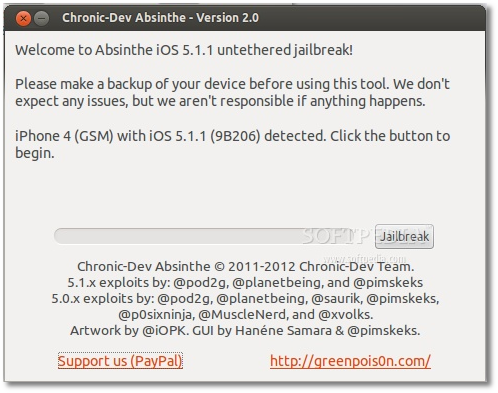

Step 3 - Jailbreak your iPhone, iPod or iPad device with Absinthe 2.0

All you have to do now is to click the "Jailbreak" button and wait for the Absinthe tool to do its job. You can also watch the jailbreak progress on your device. DO NOT PUSH ANY BUTTONS! DO NOT REMOVE ANY CABLE!

When the progress bar on the Absinthe tool is complete, and the Absinthe icon appears on your device, launch it to complete the jailbreak process.


When Absinthe finished the jailbreak process, reboot the device and you'll see the Cydia icon on your iDevice's home screen, which means that the jailbreak process is over and you can go connect it to iTunes to restore the backup.

Read more »

UEFA Euro 2012 DLC for FIFA 12 Gets New Update on PC, PS3 and Xbox 360


Electronic Arts has confirmed that it’s just released a fresh update for the UEFA Euro 2012 downloadable add-on that came out last month for the FIFA 12 soccer simulator, addressing a wide range of issues.

As a break from the FIFA norm, EA launched the UEFA Euro 2012 experience, modeled after the upcoming real-life tournament that’s set in Poland and the Ukraine, as a downloadable add-on, and not as a full-fledged retail game.

While the move wasn’t exactly welcomed by fans, as it came out just for FIFA 12, it still impressed the ones who already had the soccer simulator.

Sadly, it seems that quite a few problems were encountered by players, many of whom are now fixed by a new update that’s just been released on the PC, PS3 and Xbox 360 platforms.

“A new update for the Euro 2012 expansion pack is currently being rolled out on all platforms! We’d like to thank the FIFA community (and a special thanks to our forum members) for providing continuous feedback.”

Check out the full list of improvements made to the UEFA Euro 2012 DLC below, according to EA.

• We have addressed occasional game freezes encountered in the Team Management screen.
• We have fixed freezes that could sometimes occur at the end of Expedition, Tournament, and Kick Off mode matches.
• Users with Assisted controls will no longer be able to search for Manual games.
• Users will no longer be able to switch to the goalkeeper in Online Tournament mode.

EA also promises that the development team is still studying the feedback provided by fans and would release some more updates for the expansion in the near future.

Until then, FIFA fans can look forward to the release of FIFA 13 in September for a variety of platforms, including the PC, PS3 or Xbox 360.
Read more »

Firefox 15 Now Has Background Updates


One big piece of the silent updates puzzle has just landed in Firefox 15, background updates. Like the name suggests, this enables Firefox to install updates in the background without disturbing the user. This, along with the other silent updates-related features, should make the entire process a lot more hassle-free and almost invisible to the user.

The goal with background updates is to have newer versions of Firefox downloaded and installed while the browser is running. This way, the next time the user loads Firefox, the updated version is already installed and all that's left to do is some clean up.

In the vast majority of cases, users shouldn't even notice the slight increase in startup time and would have no idea that Firefox was updated.

This is the way Chrome updates work and this is the most efficient since users don't get bothered with it. This ensures that newer versions of Firefox are installed as soon as they arrive, not as soon the user makes time for it.

The downside of this is that users have less control over the update. For most people, this is hardly a bad thing – they don't want to be bothered with updates, they want their browser to work.

With this new feature, more people should be running the latest version of the browser at any given time than ever before, certainly than since the rapid release cycle was implemented.

However, there are users that want to have more control over the update process. Luckily for them, unlike in Chrome, all the automatic update system is optional. While silent automatic updates is the default, users will have options.

The background update feature is now enabled in Firefox 15, but there's no guarantee that it will make it into the stable version a few months from now, when it lands.
Read more »

Create entertaining animations on iOS

Creating animations on your iPhone is incredibly easy with the right app, and a few of them stand out for the number of features and interesting things you can make.

This week's collection of apps is all about making short animations. The first makes stop-motion animations by taking several photos of a moving object. The second makes short videos into animated GIFs you can add to text messages. The third is Cinemagram, an app that lets you make photo and video hybrids that are simple and fascinating.

GifBoom (Free) lets you create animated GIFs using multiple photos, and it does a pretty good job, but there are better options available. The app offers a social component that lets you share your animated GIFs, see popular posts, make comments, and follow other users. The interface is easy to understand, with buttons across the bottom for viewing a feed of people you follow, checking out the latest and most popular submissions, looking at recent activity, and options for finding friends and tweaking your profile.

To create an animated GIF, simply touch the camera icon in the bottom center of the screen. With the camera open, you have buttons for using your iPhone flash, switching between front- and rear-facing cameras, and a zoom slider. You also have the option here to assemble your animated GIF from images in your iPhone photo library. Touch the camera icon on this screen to start recording. As you record, you'll notice a counter in the lower right-hand corner of the screen that shows how many photos are being snapped. Once it reaches the maximum of 20, the app sends you to a screen where you'll pick the photos for your animation.

Before your GIF animation is posted, you can put the finishing touches on your project in GifBoom's preview screen. You can rotate the orientation, uniformly crop all images, add effects, add a frame, and type words that show up onscreen as part of the animation. Once you're satisfied, you can hit Next, and in the last step, you can add a caption and choose whether you want to additionally share your animation with Facebook, Twitter, Tumblr, via e-mail, or through iMessage. Even if you choose not to share via those methods, when you touch Publish, your animation will be shared with other GifBoom users.

The process is fairly straightforward in GifBoom and the social components are executed well, but the resulting animations aren't very smooth. In the settings you can set GifBoom to take more photos per second to alleviate some of the stop-motion effect, but you'll never get a smooth animation like you will from the other apps in this collection. It's also important to note that this app seems to be embraced by a young audience (with mostly teenagers posting animations).

GifBoom offers a lot of extras that make the app admirable, but the resulting animations are not on par with other apps in this collection. Still, if you like the idea of creating animated GIFs that have a more stop-motion quality, GifBoom might be a good option.

MyFaceWhen (Free for a limited time) lets you shoot
a short video using a much simpler process and doesn't offer the social connectors of GifBoom, but the resulting animated GIFs are smooth as silk. The idea behind the app is that while texting you might want to attach a video reaction to what your friend just said. In other words, "This is My Face When you said that."

Creating a smooth animated GIF couldn't be easier. You simply touch the center of the screen to start recording and touch it again to stop. From there the app processes your short video and turns it into an animated GIF. The app's GIF editor lets you trim the length of the video and optionally fine-tune the starting and ending points to make the loop a smoother transition. The whole process takes about a minute, making MyFaceWhen ideal for dropping a quick animated GIF into a text message.

MyFaceWhen produces great results, but I do have some complaints. If you want to share your GIF animation beyond iMessage, you're out of luck. The app only offers the option to copy the GIF to your clipboard and doesn't offer any connections to popular social-network services. It's also important to note that the animated GIF will only play in the small preview window of text messages. Touching the animation (as you would do to zoom in on a photo in iMessage) shows you a still image. The developers are careful to point this out in their description of MyFaceWhen. But even without being able to zoom in on animations, having a small animation that plays in the iMessage window is a pretty cool addition to your text messages.

Overall, MyFaceWhen is an incredibly simple app for making animated GIFs you can drop into iMessage. It's not as feature-packed as other apps (and another means of sharing the animations would be first on my wishlist), but it does what it does very well. If you're looking to add something extra to your texting, definitely check out this app.

Cinemagram (Free) lets you create a fascinating
hybrid of photo and video to make cool-looking animations you can share on Cinemagram's social platform and other social-networking services. The app leads you through the process, which requires a little more work than MyFaceWhen, but produces unique-looking animations.

What you can do with the app is create a still photo with only part of it animated, for a really cool-looking effect. The best way to understand Cinemagram is to launch the app and see what other users have made. The app has its own social platform similar to photo-sharing app Instagram, with feeds for popular animations, the latest animations from everyone, or animations from just your friends. There are a lot of talented Cinemagram users out there, so checking out the possibilities is the best way to get acquainted with what the app does.

When you're ready to create your own Cinemagram, touch the Capture button in the bottom center of the screen and then touch the record button. When you're finished recording, you'll move on the next step, which is to draw a mask. The mask is the area of the Cinemagram that will be animated. When you're finished drawing the mask with your finger, hit Next to "Colorize" (the app's name for image filters) your Cinemagram. The app offers 10 different filters to choose from, with options like redscale and sepia.

When you're finished you can preview your Cinemagram before posting it to the feed. You also have the option to go back and change your mask or Colorize selection if you want to make tweaks before posting.
In addition to sharing on the Cinemagram platform (complete with Likes, comments, and comment replies), you can also share your project on Facebook or Twitter, or via e-mail.

Cinemagram is a fun and unique app for creating photo and video hybrids and I've been amazed by some of the stuff people have made using the app. If you want to try an interesting app for creating animations, Cinemagram is an excellent choice.
Read more »

KickAssTorrents to Be Blocked in Italy


The Pirate Bay may be getting some support from ISPs in some places, but other BitTorrent sites are not so lucky. With The Pirate Bay already blocked in the country, Italy has now turned its eye on a popular alternative, KickAssTorrents.

Unlike in some places, say the UK or the Netherlands, but very much like in other places, copyright lobbying groups have gotten the country's authorities to play copyright cops and spend the public's money defending US companies.

Authorities in the country are boasting that they've managed to force ISPs to block the site, which they claim is generating millions of dollars in revenue per year, exploiting hard working artists. Only the old domain name is mentioned, so the new one, kat.ph, may not be targeted.

Italian BitTorrent users are very familiar with ways of getting around this type of blocks and their skills will only get better as authorities continue to hunt down sites. Those skills may come in handy if and when Italy decides to block YouTube or other video sites.
Read more »

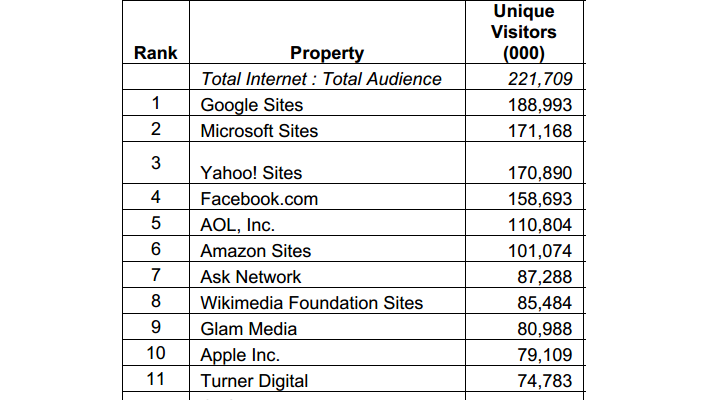
Google Still the Biggest Site in the US, Far Ahead of Facebook


Facebook is growing stronger and stronger and getting a lot of people to spend a lot of time on the site, but it's still not the biggest website, at least not in the US.

Google still holds the title, unsurprisingly, though Facebook is coming up the ranks. It's only in fourth place though, well behind even Yahoo, in terms of unique visitors.

In April, Google was the most visited website, well websites as comScore counts several Google properties in its report, with 189 million people coming through its doorstep.

Microsoft, which was the second most visited site didn't even come close and is in fact almost tied to Yahoo. Microsoft had some 171.168 million visitors, but Yahoo sites had 170.890 million, a very close call.

Facebook only had some 159 million visitors, but was still far ahead of AOL, which followed with 111 million. You can check out comScore's full report here (PDF)
Read more »

Sophos Shuts Down Partner Portal After Discovering Hack Tools

The world renowned security firm Sophos has revealed that its Partner Portal has been temporarily taken offline after a couple of “unauthorized programs” were found on the server. It’s believed that the malicious elements were designed to allow hackers to gain remote access to information.


The security breach was discovered on April 3 and as soon as the hack tools were identified, the partner logins were suspended, but only for those who haven’t moved to the new SFDC portal.

An investigation is ongoing, but initial analysis of the incident reveals that the server’s database includes partner names, email addresses, business addresses, contact information and hashed passwords.

It’s uncertain if the data was accessed by the individuals who breached the server, but the company considers that it must assume the worst.

“When the Partner Portal comes back online, you will find that your password has been reset as a precautionary step, just in case it fell into the wrong hands,” reads the statement issued by the company.

“You should, of course, ensure that you never use the same password on different websites - and if you did use your old Partner Portal password on other sites, we would advise that you change the login credentials on those sites to something unique.”

If the email addresses were stolen, they may be used by the cybercriminals to launch phishing expeditions that are cleverly designed to appear as originating from Sophos. This is why it’s crucial that the organization’s partners keep an eye out for any suspicious notifications that carry links or, even worse, attachments.

Hopefully, it will turn out that no data was accessed by the hackers who placed the remote access tools, but until things are clarified, it’s best for Sophos partners to act with caution and apply the security practices recommended by the firm.
Read more »

 
Powered by Blogger